When you need to slow down or lengthen a video layer in After Effects, it isn’t enough to simply stretch it in time — it has to be done smoothly and without artifacts. This is what time interpolation and the features designed to control motion between frames are for. Below is a step-by-step guide.
1. Use Time Stretch or Time Remapping
Time Stretch
A simple way to stretch the duration of a layer:
A more flexible way to control the slowdown:
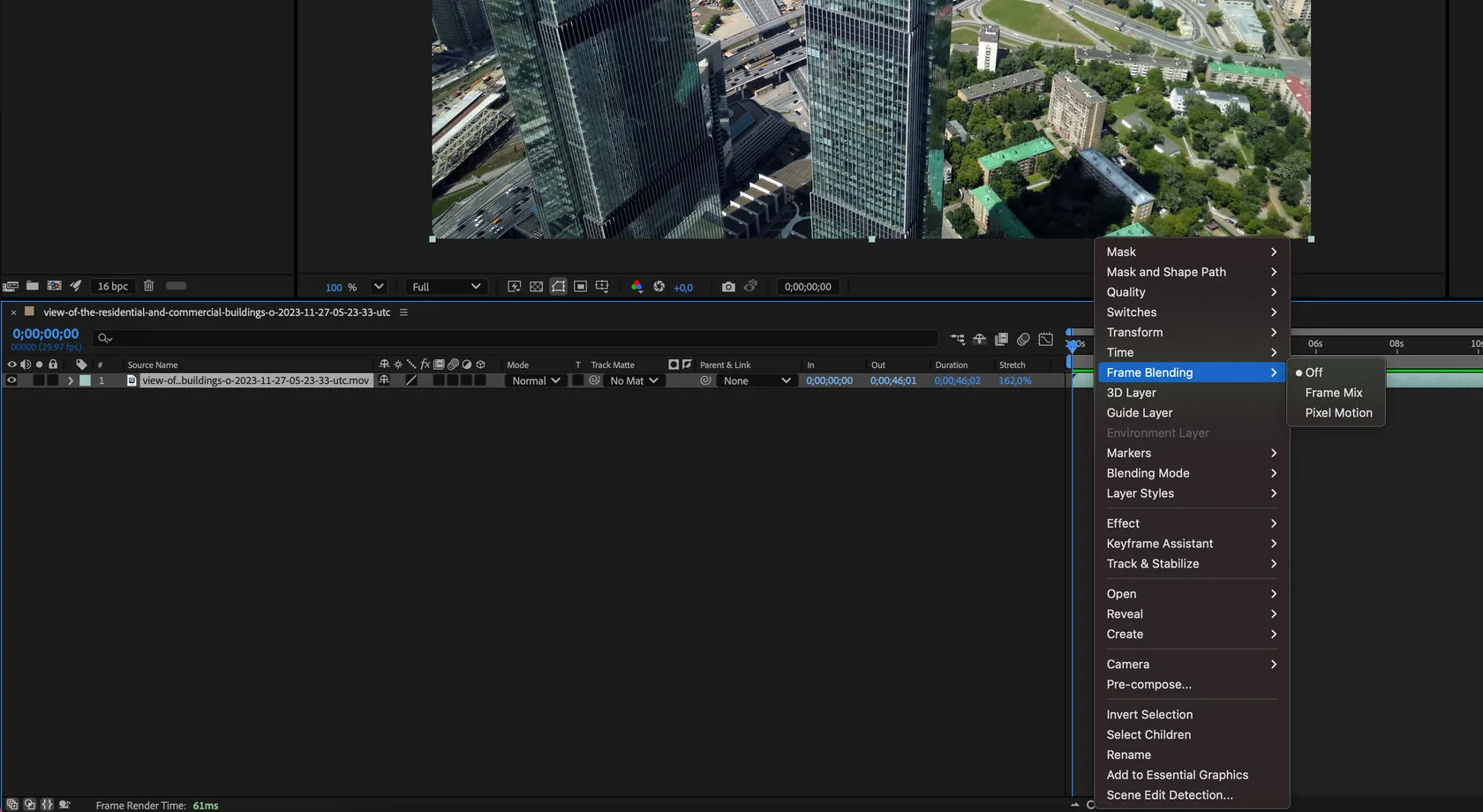
To avoid stutter and keep the motion smooth between frames:
⚠️ Things to keep in mind
1. Use Time Stretch or Time Remapping
Time Stretch
A simple way to stretch the duration of a layer:
- Select the layer.
- Right-click → Time > Time Stretch.
- In the dialog that opens, enter, for example, 200% — the layer will become twice as long and twice as slow.
A more flexible way to control the slowdown:
- Right-click the layer → Time > Enable Time Remapping.
- Two keyframes will appear on the timeline — at the start and at the end.
- Drag the end of the layer further to the right in the Timeline and add a keyframe at the new point.
- After Effects will automatically interpolate the motion between the frames.
To avoid stutter and keep the motion smooth between frames:
- Right-click the layer → Frame Blending > Pixel Motion.
- In the Timeline, turn on the Frame Blending switch (two overlapping frames).
- Enable it for the layer you need.
⚠️ Things to keep in mind
- Pixel Motion needs more computing power and can cause artifacts on complex footage.
- It works best on video without sudden movements, flashes or flicker.
- If you see distortions, try Frame Mix instead of Pixel Motion. It’s less precise but more stable.